Pantry to Pan

How to use Pantry to Pan

Watch how

Short videos of each thing you can do. Tap one to play it.

Getting started

Install the app on your phone

Pantry to Pan runs in your phone's browser and installs like an app. There's no app store download. The install page, pantrytopan.com/install, shows the steps for your phone.

iPhone

  1. Open pantrytopan.com in Safari and sign in.
  2. Tap Share (the square with an arrow), then Add to Home Screen.
  3. Open Pantry to Pan from your Home Screen. It asks for a 6-digit code: type the one Safari shows you. You only do this once.

Android

  1. Open pantrytopan.com in Chrome and sign in.
  2. Tap Install app when Chrome offers it. Not showing? Open the โ‹ฎ menu, tap Add to Home screen, then pick Install. Don't pick Create shortcut: a shortcut opens a new Chrome tab every time you tap it, and Pantry to Pan won't show up when you tap Share.
  3. Open Pantry to Pan from your home screen. The app opens full screen, with no address bar at the top. See Chrome's address bar? That icon is a shortcut: press and hold it, remove it, and open Pantry to Pan from your app list instead (drag it from there to your home screen if you like).
  4. Now Pantry to Pan shows up when you tap Share in Instagram, TikTok, YouTube or your browser.
Back to search

Sign in faster: a passkey or a password

The first time, you sign in with the link or 6-digit code we email you. After that you can skip the email:

  1. Open the menu at the top right and tap Settings, then find Your account โ†’ Faster sign-in.
  2. Tap Add a passkey on this device to sign in with Face ID, Touch ID or a fingerprint. On iPhone, the passkey works in Safari and in the Home Screen app, so you don't need a code for each.
  3. Or tap Set a password. Your phone or browser can suggest a strong one and remember it.

Next time, tap Sign in with a passkey, or open Sign in with a password, on the sign-in page. Forgot your password? Sign in with the email link, and for the next 30 minutes you can set a new one without the old one.

Back to search

Get around

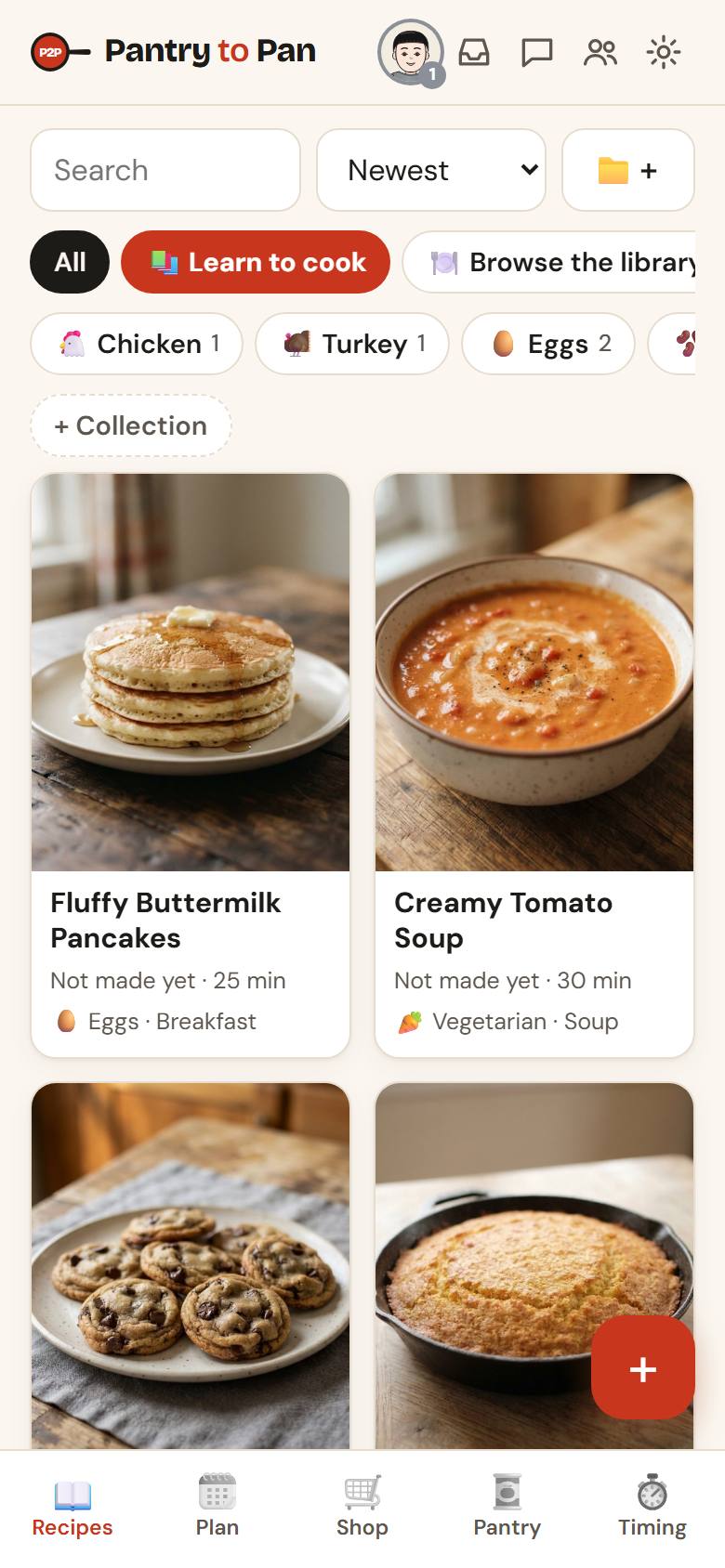
The tabs along the bottom are Recipes, Plan, Shop, Pantry (Plus and Pro) and Timing. The menu at the top right (your chef, if the chef game is on) has My kitchen, Recipes coming in, Friends, Settings and Send feedback. A dot on it means something inside is new.

The Recipes screen, with tonight's dinner at the top and the tabs along the bottom
Back to search

Share your kitchen with your household

Everyone in a kitchen shares the recipes, meal plan, pantry and shopping list. Ratings, cooking pace and settings stay each person's own. One plan covers everyone in the kitchen, so only one person pays.

  1. Open the menu at the top right and tap Settings.
  2. Under Household, tap + Invite someone and send them the link.
  • Already have your own account? Sign in, then open the link: your recipes and folders come with you. A free trial you started ends then, so you're never charged for it.
Back to search

Combine two kitchens

Only for people who consider themselves one household (you don't have to live under one roof), each with a kitchen of their own already. Everything in both comes along (recipes, folders, meal plans, pantry, shopping list and cooking history) into one kitchen for good: it can't be undone or split again, and a kitchen holds at most 6 people.

  1. Open Friends, find them under Find a friend and tap Combine kitchensโ€ฆ.
  2. Read what will happen, tick that you're one household, and tap Ask. Nothing changes until they do the same on their Friends page.
  • The kitchen with the better plan stays, and its plan keeps going. The other plan ends: a free trial just ends, and a paid plan is cancelled with the days you hadn't used refunded to your card. On the same plan, the one with more time paid for stays.
  • Combined kitchens can't be split again.
Back to search

Saving recipes

Save a recipe from Instagram, TikTok or YouTube

Android: in Instagram, TikTok or YouTube, tap Share on the reel or video and pick Pantry to Pan.

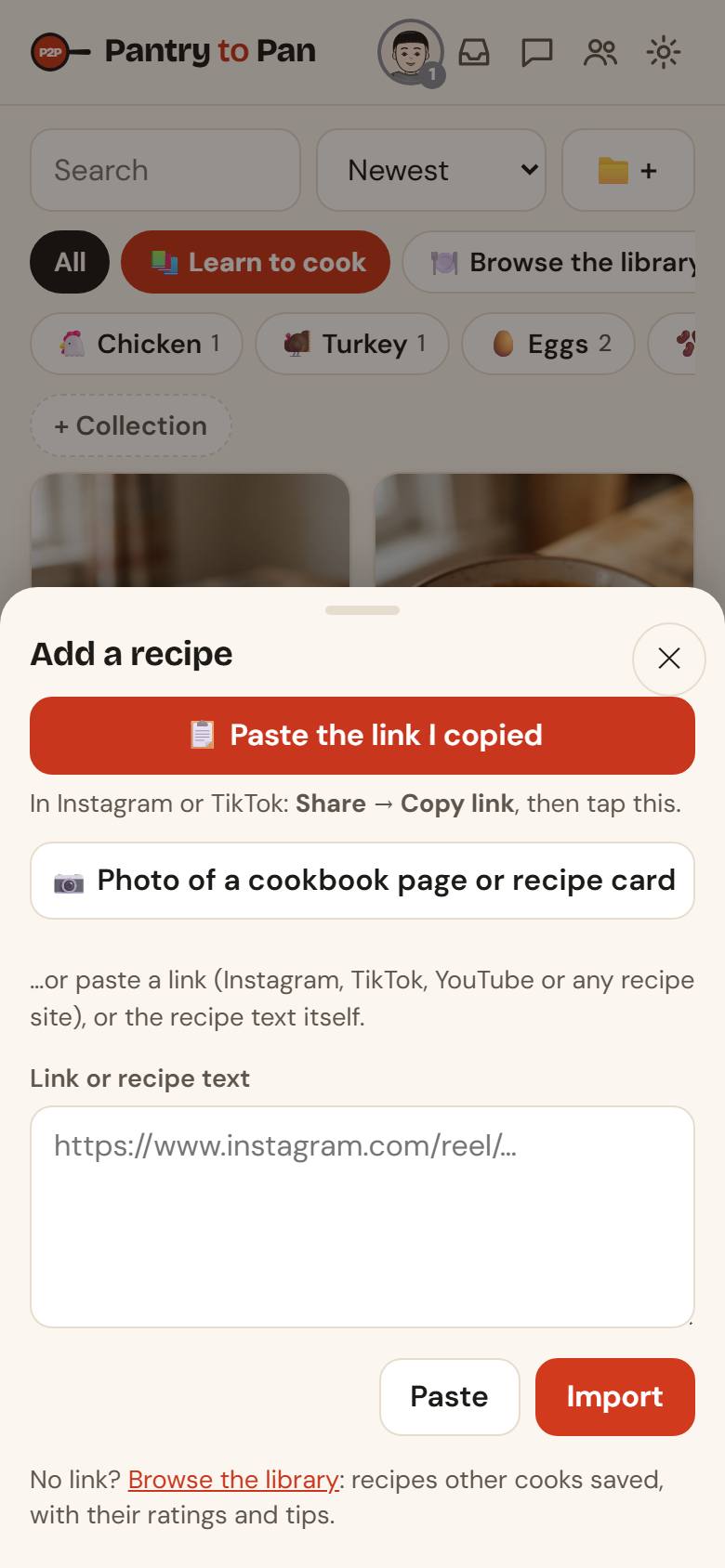
iPhone: tap Share โ†’ Copy link, open Pantry to Pan, tap + (bottom right), then ๐Ÿ“‹ Paste the link I copied. Or add a Send to Pantry to Pan button to the Share menu, once: open pantrytopan.com/shortcut on your iPhone and tap Add Shortcut. After that, on any reel or video, tap Share โ†’ Send to Pantry to Pan. (It uses Safari's sign-in, so stay signed in to Pantry to Pan in Safari.)

Pantry to Pan watches and listens to the video, reads the caption, and finds the creator's written recipe when they have one. It turns all of that into one clean recipe with amounts, times and temperatures.

Back to search

Photograph a cookbook page or recipe card, or save a screenshot

Tap +, then ๐Ÿ“ท Photo of a recipe. Take a photo, or tap ๐Ÿ–ผ Choose from photos to use a picture or a screenshot of a recipe. Recipe runs over two pages or several screenshots? Add each one (up to 6); they're read in order.

Android: from a screenshot or photo, tap Share and pick Pantry to Pan.

Back to search

Follow an import and check what it guessed

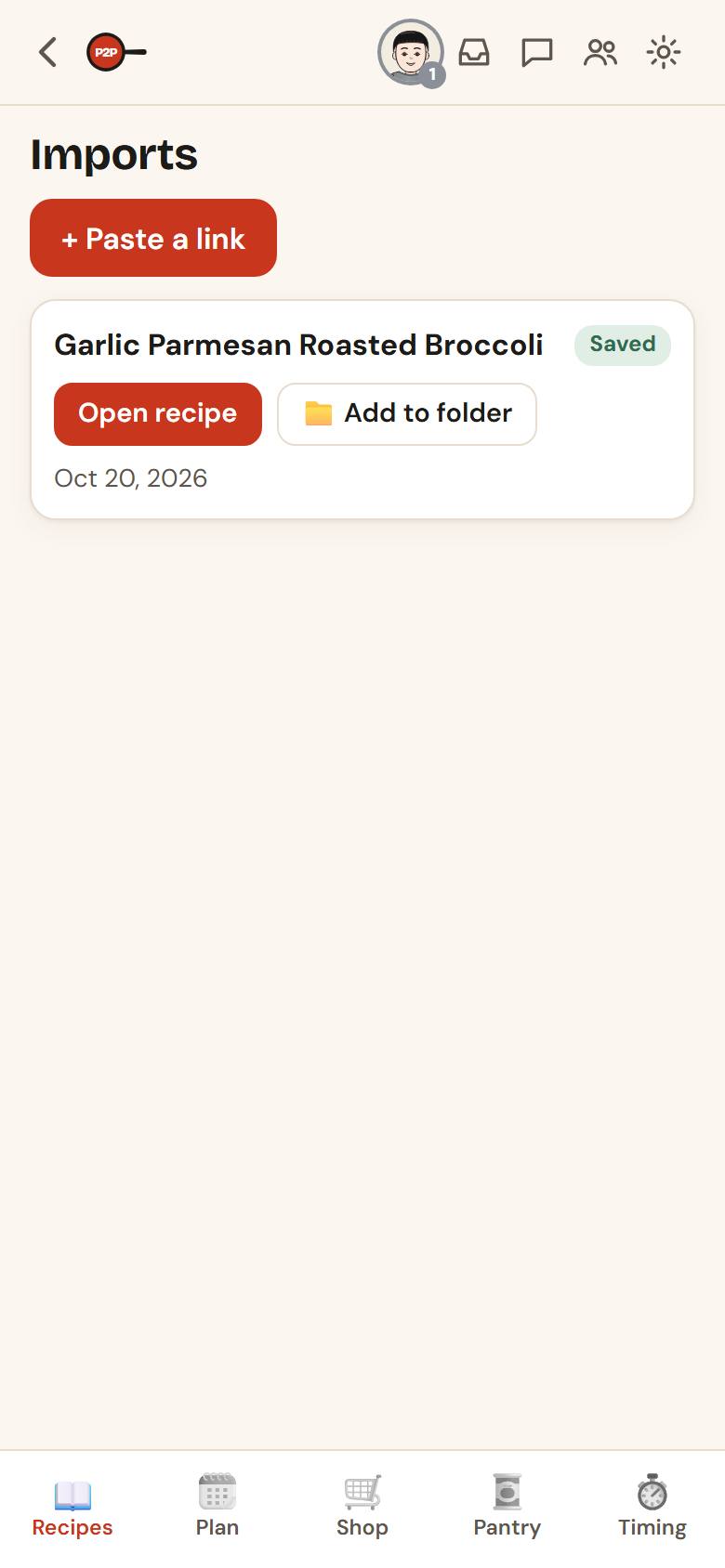
New recipes appear under Recipes coming in, in the menu at the top right. Most are ready in under a minute. Tap Open recipe when it says Saved.

The first time you open a new recipe, a โœจ Check what Pantry to Pan guessed box shows the course and main protein it picked. Fix anything that's off and tap Looks right. Anything the source didn't say (a missing bake time, say) is filled in as an estimate and marked (est.) so you know to keep an eye on it.

Recipes coming in, with a finished recipe
Back to search

Imports and your monthly allowance

Each new recipe you import uses one of your plan's monthly imports. Recipes coming in shows how many you have left. A recipe someone else already brought into Pantry to Pan is ready instantly, and it still uses one import. Sharing a link you've already saved just opens your copy, and that's free. If a link looks like a recipe you've already saved, the import stops before it's read and asks. Compare side by side shows your recipe next to what the post says; tap Save it anyway if it's a different recipe. It doesn't use an import unless you save it. If one still gets through as the same dish, tap Keep the other one: the copy is removed and the import comes back.

Back to search

Your recipes

Find a recipe

Watch how

On the Recipes tab:

  • Type in Search recipes. It searches as you type.
  • Sort by Newest, Top rated, Last made, Quickest or Aโ€“Z.
  • Tap a chip to filter: โญ Want to make, โœ“ Made, Not made yet, a course (Main, Side, Dessertโ€ฆ) or a main protein (Chicken, Eggs, Vegetarianโ€ฆ).
Back to search

Starter recipes

New kitchens come with 100 everyday starter recipes in a folder of their own, so you can try planning, shopping and Cook mode before saving any of your own. They don't use any of your monthly imports.

  • Find them under the ๐Ÿ“ Starter recipes chip on the Recipes tab.
  • Don't need them? Open the folder and tap Remove the whole folder, or use Settings โ†’ Starter recipes. It goes to Recently deleted for 30 days, so you can bring it back.
  • Removed them and want them back later? Settings โ†’ Starter recipes โ†’ Add.
Back to search

Collections

Watch how

Group recipes your own way, like "Thanksgiving" or "Weeknights". A recipe can be in as many as you like.

  • Tap + Collection on the Recipes tab to make one.
  • To add several recipes at once, tap ๐Ÿ“๏ผ‹ next to the sort menu and pick them.
  • To add one recipe, open it, tap ๐Ÿ“ and tap the collection, then Done.
Back to search

Who a recipe is by

Every recipe credits the person who made it, under the title: Recipe by the creator, with See the original to go back to their video or page. Cook mode shows the credit too. For a recipe you photographed or pasted, tap Add a credit (or Edit categories) and type who it's by, like the cookbook and its author.

Back to search

Read a recipe

Watch how

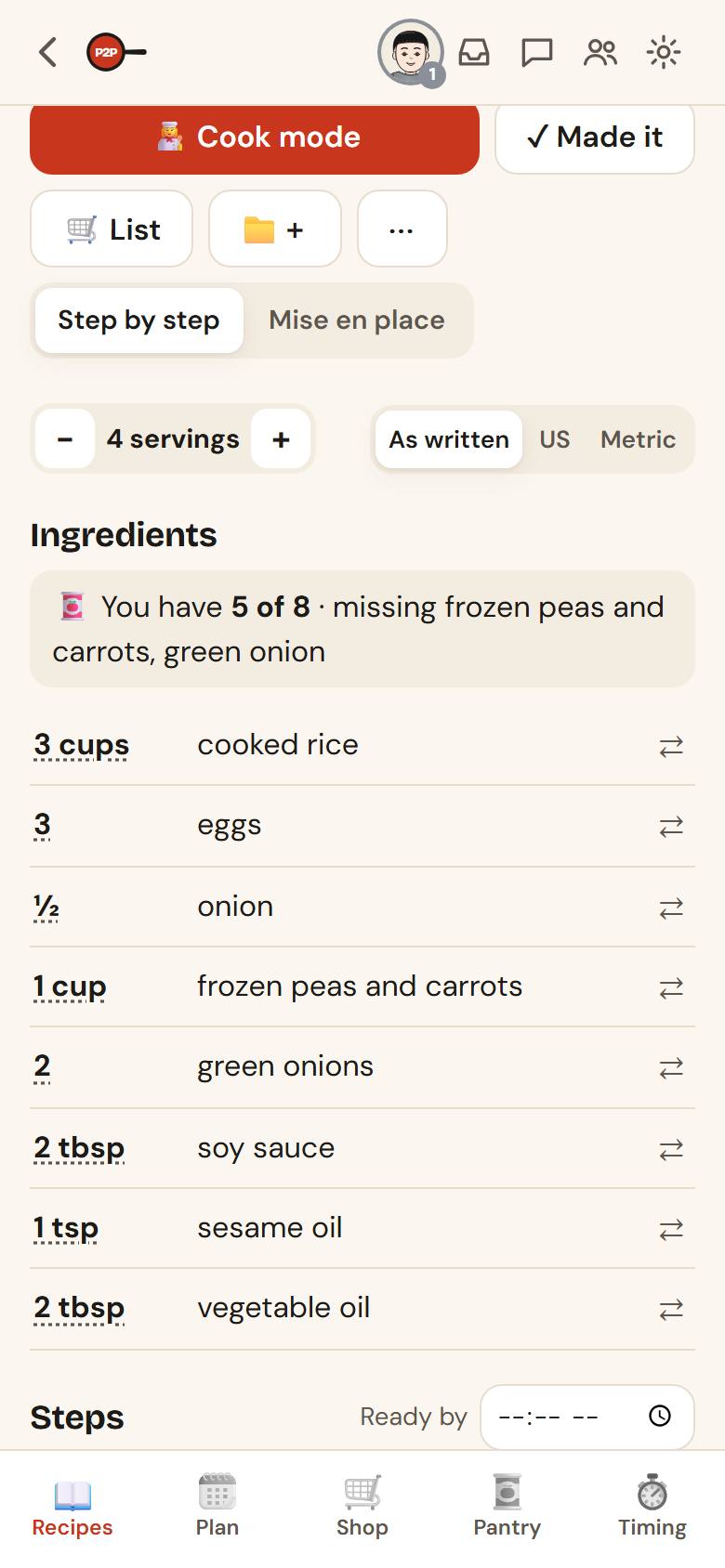
A recipe shows its time, course and tags, then:

  • โˆ’ / + to change the number of servings. Every amount scales.
  • As written / US / Metric to switch units. Set your favorite in Settings โ†’ Units.
  • Tap any ingredient's โ‡„ for other units, rough sizes ("about 1 medium onion") and swaps.
  • From your pantry shows how much of the recipe you already have, and what you can use instead of what you don't.
  • If a step uses something that isn't in the ingredient list ("Step 3 uses butter, but it isn't in the ingredients"), tap Add to put it on the list, or Not needed.
A recipe: servings, units and what's in your pantry
Back to search

Made it, ratings and notes

Watch how

After cooking, tap โœ“ Made it. Rate it, add a note for next time ("needed more salt"), and Pantry to Pan takes out of your pantry what the recipe used. Your history shows under History at the bottom of the recipe.

Back to search

Photos of what you made

Add a photo of what you cooked from โœ“ Made it, or with ๐Ÿ“ท Add a photo under Photos on any recipe.

  • Choose who sees each photo: Just me, Friends or Everyone. You can change it, or delete the photo, any time.
  • A photo shared with friends or everyone is checked automatically first. Only photos of the meal can be shared (no people apart from a cook's hands); anything else stays private to you.
  • Friends can like your photos, and you'll get a notification (you can turn these off in Settings โ†’ My cooking photos). Your photos live in My cooking photos.
  • The thumbnail contest: on a starter recipe, photos shared with everyone can be voted on, one vote per person. The most-voted photo becomes that recipe's picture for everyone, credited to its cook's @handle.
  • See a photo that shouldn't be there? Tap Flag and we'll review it.
Back to search

Tips from you and your friends

Under Tips, post what you changed: swaps, timing, what you'd do next time. Choose Friends or Everyone.

Tips are checked before anyone else sees them. Say what you like about the food. A tip can't include links, email addresses or phone numbers, and one that's held back is seen only by you, with the reason, until we've had a look. Notes for next time on Made it are private to your kitchen and aren't checked.

Back to search

Techniques

Learn a technique

Watch how

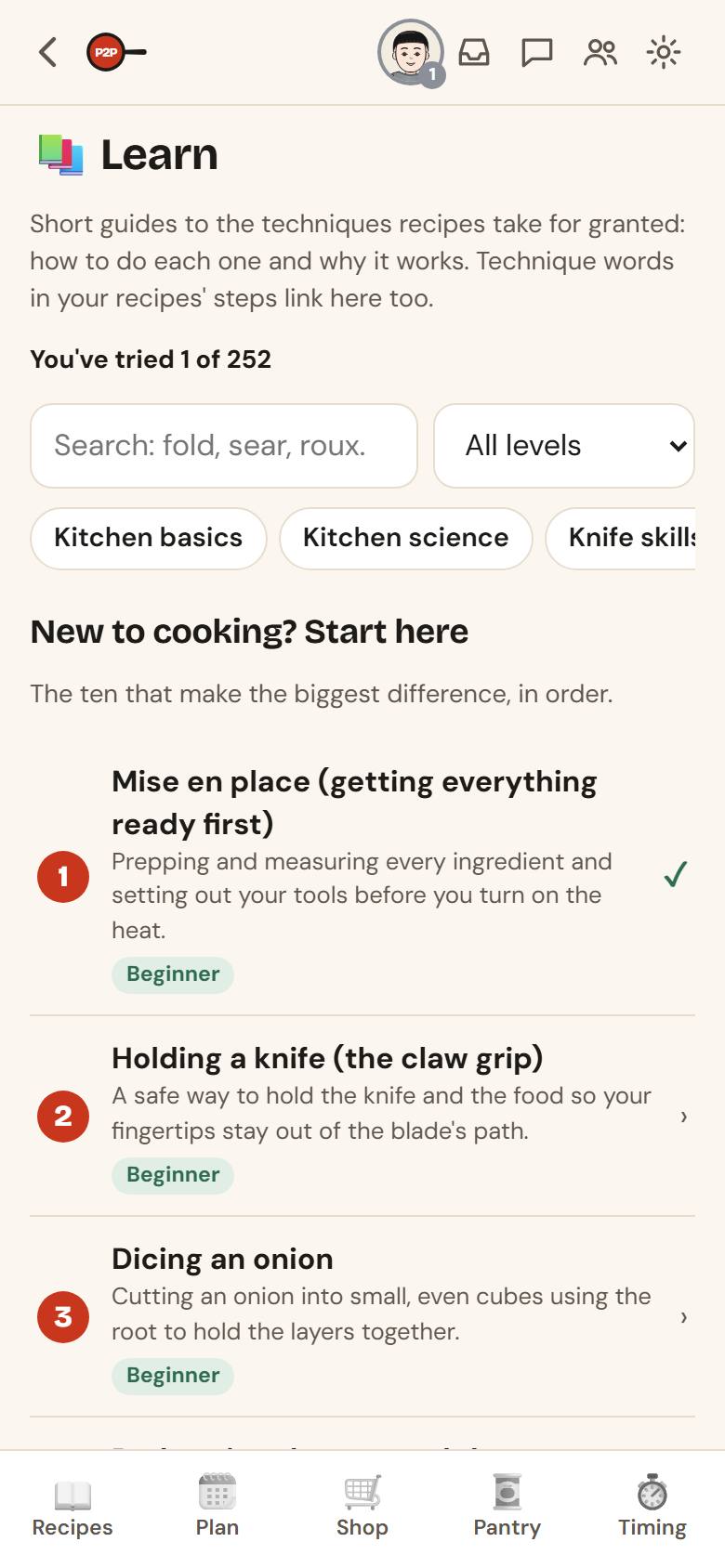
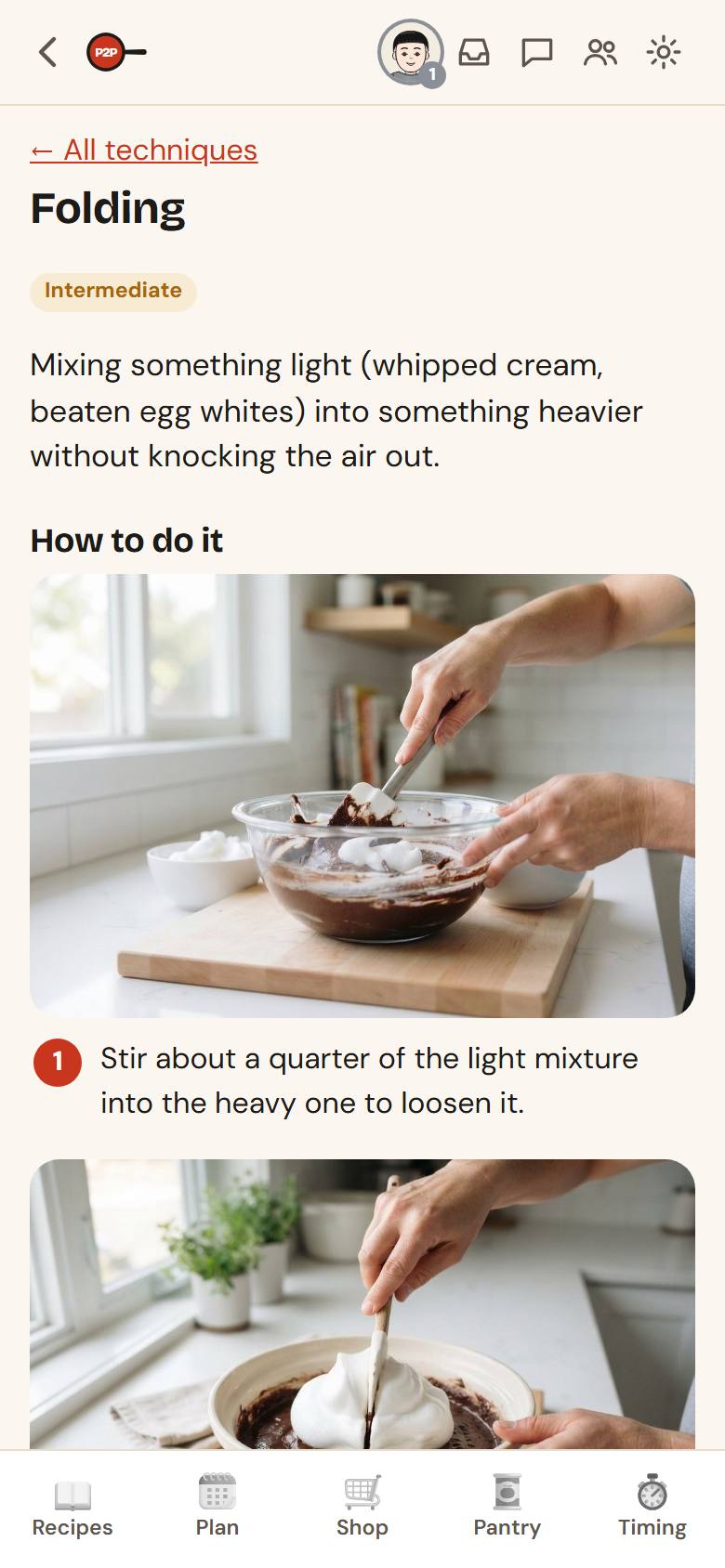
Don't know what "fold in" or "deglaze" means? Pantry to Pan has short guides to 252 techniques, from holding a knife to tempering chocolate. Each one tells you what it is, how to do it, why it works and the common mistakes, with a link to watch it done.

Open the Learn screen with the red ๐Ÿ“š Learn to cook chip on the Recipes tab (or Settings โ†’ Techniques). It has:

  • New to cooking? Start here: the ten techniques that make the biggest difference, in order.
  • Technique of the day, a different one each day.
  • Every technique by topic (knife skills, sauces, bakingโ€ฆ), with a Beginner / Intermediate / Advanced label, a level filter and a search box.
  • I've tried this: tick a technique once you've done it, and the Learn screen counts your progress.

Technique words in a recipe's steps are underlined: tap one to open its guide right there, even in Cook mode. Anyone can also read the guides on the website at pantrytopan.com/techniques.

The techniques list
The techniques list
One technique: what it is, how, why and common mistakes
Back to search

Technique cards

Every time you reach a new level in the chef game (cooking earns it), you get a technique card, face down. Tap it to turn it over and see which one you drew: a photo from the guide and its main point in one sentence. Cards go into My binder in My Kitchen (tap your chef at the top), where every set has a space for each card, so you can see what's still missing.

  • While you're a Dishwasher you draw the ten essentials, in a surprise order, so the set is complete when you make Prep Cook. After that come beginner cards, then intermediate and advanced as you climb.
  • Draws lean a little toward techniques your own recipes use.
  • Missed one? A card you haven't turned over waits in My Kitchen until you do.
  • The guides themselves stay free to read on the Learn screen: the cards are yours to keep.
Back to search

Cooking

Cook mode

Watch how

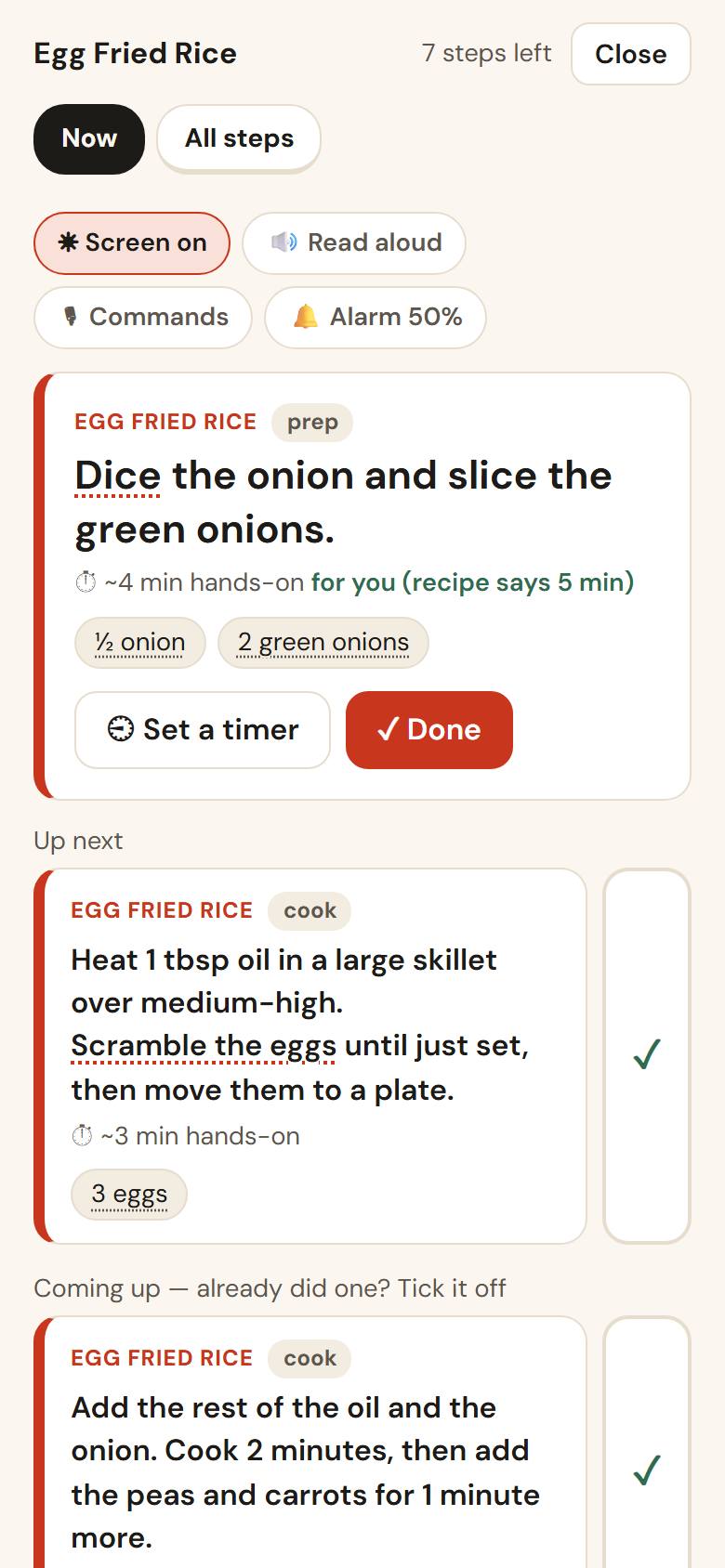
Tap ๐Ÿ‘ฉโ€๐Ÿณ Cook mode on a recipe (or ๐Ÿ‘ฉโ€๐Ÿณ Cook it on the plan). You see one step at a time:

  • The step, how long it takes, and the ingredients it uses, with amounts.
  • โœ“ Done moves you on. Up next shows what's coming. Already did a later step? Tick it off.
  • All steps shows the whole list.
  • Timers start from the step and keep running if you leave the screen.
Cook mode, one step at a time
Back to search

Mise en place

Watch how

Pro. On a recipe, switch Step by step to Mise en place (under ๐Ÿ‘ฉโ€๐Ÿณ Cook mode, or above the steps: it's the same switch) to do all the prep first, then just cook:

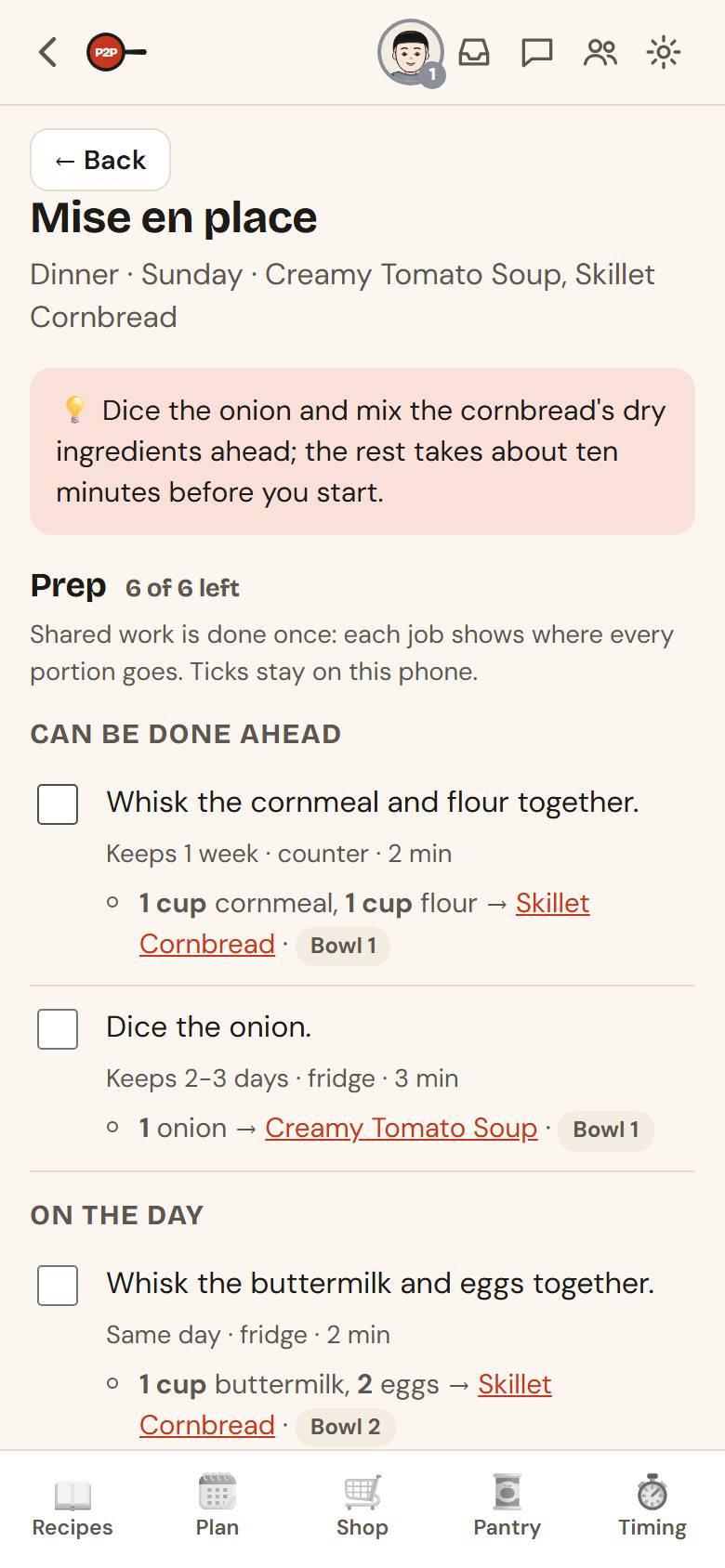
  • Prep lists every job: chopping, measuring, whisking. Each says where the result waits ("Bowl 1"), how far ahead it can be done and where to keep it. Tick the jobs off as you go; the ticks stay on that phone.
  • Cook is the recipe's cooking steps, calling for the bowls by name: "add Bowl 1 (diced onion)". Tick each step off, and tap โฒ to start its timer.
  • A whole meal: tap ๐Ÿงบ Mise en place on a day in your plan, or on a big meal. One prep list covers every dish: shared work is done once, and each job shows where every portion goes.
  • Then choose how to cook the dishes: One at a time (each recipe start to finish) or Together, woven so everything is ready at once. Together stays with one dish until it can look after itself, says when to switch, and warns you of stretches with two or more dishes on the stove.
A meal's mise en place: one prep list for two dishes
Back to search

Hands-free cooking

In Cook mode, tap ๐ŸŽ™ Tap to talk at the bottom (a knuckle works) and say one thing: "okay, done", "what do I need next?", "how much milk?", "do I have time to wash up?". It beeps, listens for that, does it, and the microphone is off again, so the TV and talk in the room can't set it off. Tap it while it's talking to stop it. When it asks you something ("which timer?"), it listens for your answer by itself. The screen stays on while you cook.

๐Ÿ™Œ Hands-free keeps the microphone on and reads each step aloud. Then start what you say with its name, every time: "Chef, next", "hey Chef, pause the timer". Answering something it just asked, "okay" to an alarm and "stop" while it talks need no name.

โš™ (next to it, and in Settings โ†’ Cook mode) has the reading voice, the alarm volume, reading steps aloud, and keeping the screen on. Those are remembered on that device. The microphone isn't: it's only on while you're talking to it. It learns the phrases you use and what you mean by them, kept as a fingerprint, not the words, and how long you pause mid-sentence, kept as a few numbers on that phone. Nothing that's said is kept. What the app can't work out itself goes to our AI helper: a question, something that's gone wrong, or anything said just after a tap or after it spoke, which can include other talk in the room. We don't keep that either, except that a general cooking question two different kitchens have asked is saved with its answer, with nothing about who asked.

Say "no, not that" or "undo that" and it takes back what it just did (a step, a timer). If two timers could be meant, it asks which. If it got something wrong, say "log that" or "that didn't work right", or tap โš‘ Went wrong: the last 30 seconds go to us to look at, with when things happened and how many words, not what was said.

Cooking several recipes one at a time, when one is on a timer you can move on to the next. Cook mode takes you back when the timer's up, and each recipe's own tab has its next step. Leave a recipe partway and it keeps your place for 48 hours.

Cook mode looks ahead for you. When a step starts a timer and the next step has to wait for it, it tells you how long you've got and what to get ready for that next step, then reminds you about a minute before it's up. When the next step comes straight after this one on a hot pan, it tells you what to have ready before you start.

Back to search

Timer alarms on the lock screen

To have timers ring when your phone is locked or the app is closed: Settings โ†’ ๐Ÿ”” Timer alarms on the lock screen โ†’ Turn on, then Send a test. On iPhone this needs the app added to your Home Screen (iOS 16.4 or newer). A timer that can't ring here says so in Cook mode, and tapping that message shows how to fix it.

A finished timer rings every minute for about 10 minutes until you stop it: tap the alarm, or tap the bar in the app. On Android, swiping the alarm away stops it too. Your phone's silent switch and Focus can still quiet it.

Back to search
Cook several dishes at once

Cook mode can run more than one dish together and orders the steps so they finish at the same time. A dessert doesn't hold up dinner: one that's eaten warm (a crisp, cookies) goes in the oven as you serve dinner and bakes while you eat, and one that needs a long cool (brownies) is made ahead. If one oven can't do it all at once, the plan says which dish will be ready early and to keep it covered. โœจ Polished plan (at the end of Cook mode) asks the AI to write the plan step by step. It's worth it for big meals and counts toward your plan's allowance.

Back to search

Your oven and your pace

Pantry to Pan learns how you cook:

  • More than one oven? A double oven or a second one: Settings โ†’ My kitchen โ†’ Ovens, and pick 2 or 3. Cook plans and big-meal timelines then bake dishes at different temperatures at the same time.
  • Oven preheat: tap Oven's hot (or Not hot yet? +5) on a preheat timer and it learns how long your oven takes. You can also set it in Settings โ†’ Oven preheat.
  • Your pace: each time you tap Done in Cook mode, it learns how long hands-on work takes you, and plans with it.
Back to search

Meal planning

Plan your week

Watch how

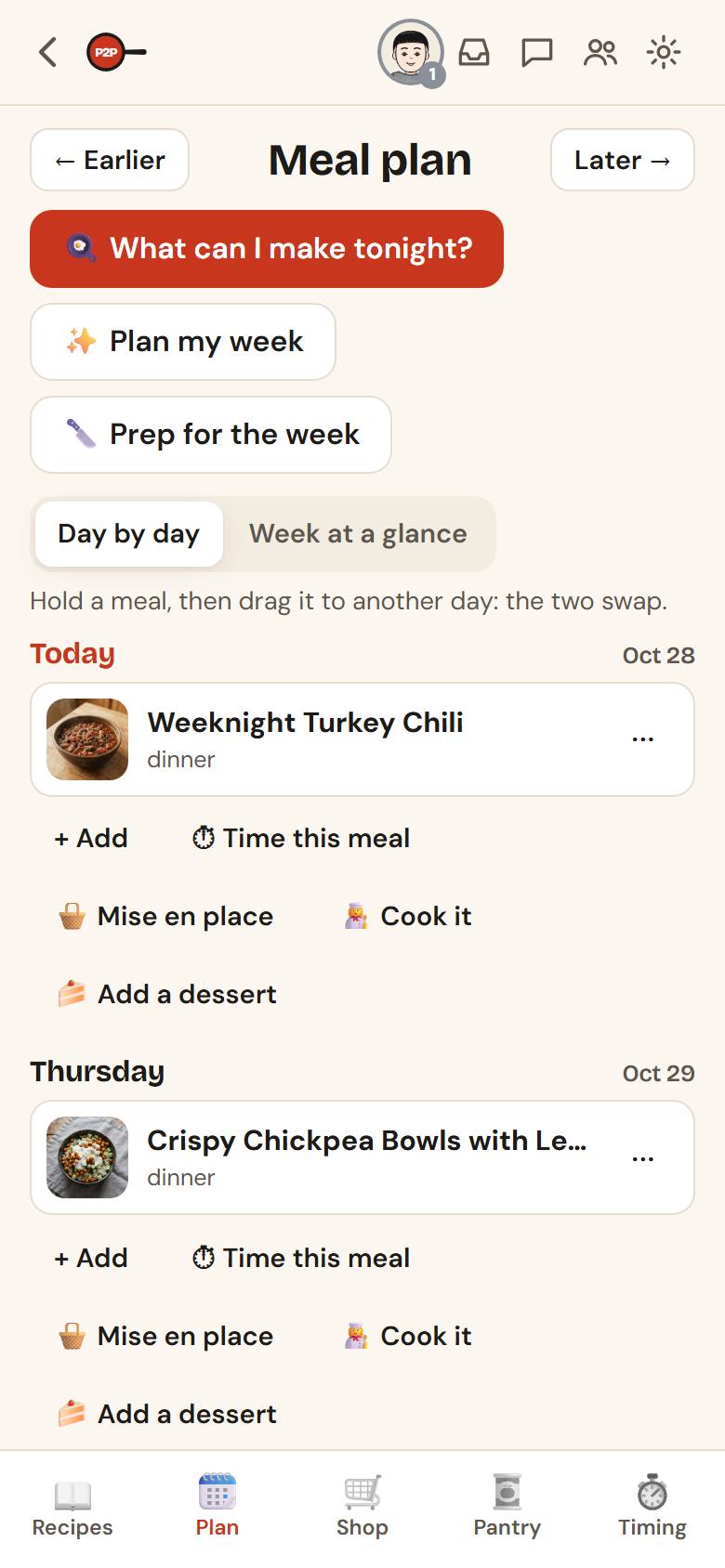
On the Plan tab, each day has + Add. Pick a recipe and a meal (breakfast, lunch or dinner). Or, on a recipe, tap โ‹ฏ, then ๐Ÿ—“ Plan it, and pick the day. Use โ† Earlier and Later โ†’ to move between weeks. Each planned meal has โฑ Time this meal and ๐Ÿ‘ฉโ€๐Ÿณ Cook it.

The meal plan
The meal plan
Back to search

What can I make tonight?

Watch how

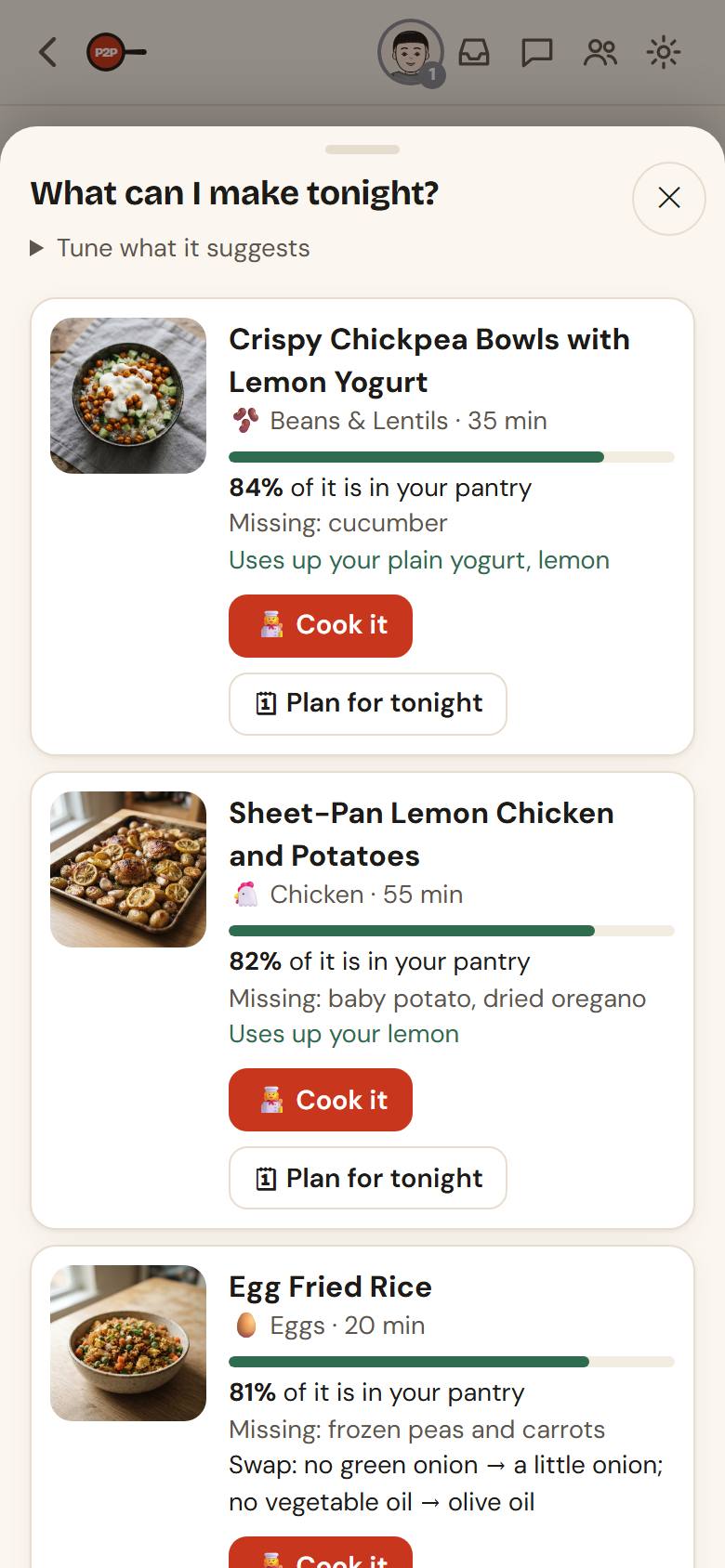
Tap ๐Ÿณ What can I make tonight? on the Plan tab. Your recipes are ranked by how much is already in your pantry, with what's missing and what to swap. Tap ๐Ÿ‘ฉโ€๐Ÿณ Cook it to start, or ๐Ÿ—“ Plan for tonight. Show me 3 others for more. Tap ๐Ÿฅ— Suggest a side for sides from your own recipes that go with it.

What can I make tonight, ranked by what you have
Back to search

Plan my week for me

โœจ Plan my week suggests a week of meals with variety, ingredients that overlap (less waste) and what's in your pantry. It skips anything someone in your household can't eat.

Back to search

Prep for the week

๐Ÿ”ช Prep for the week gathers the chopping and make-ahead work for the week's meals into one session, so weeknights are faster.

Back to search

Dinner tonight on the Recipes tab

When something is planned for today, the Recipes tab shows it at the top with when to start so it's ready on time. Tap change to pick a different time to eat.

Back to search

Shopping

Your shopping list

Watch how

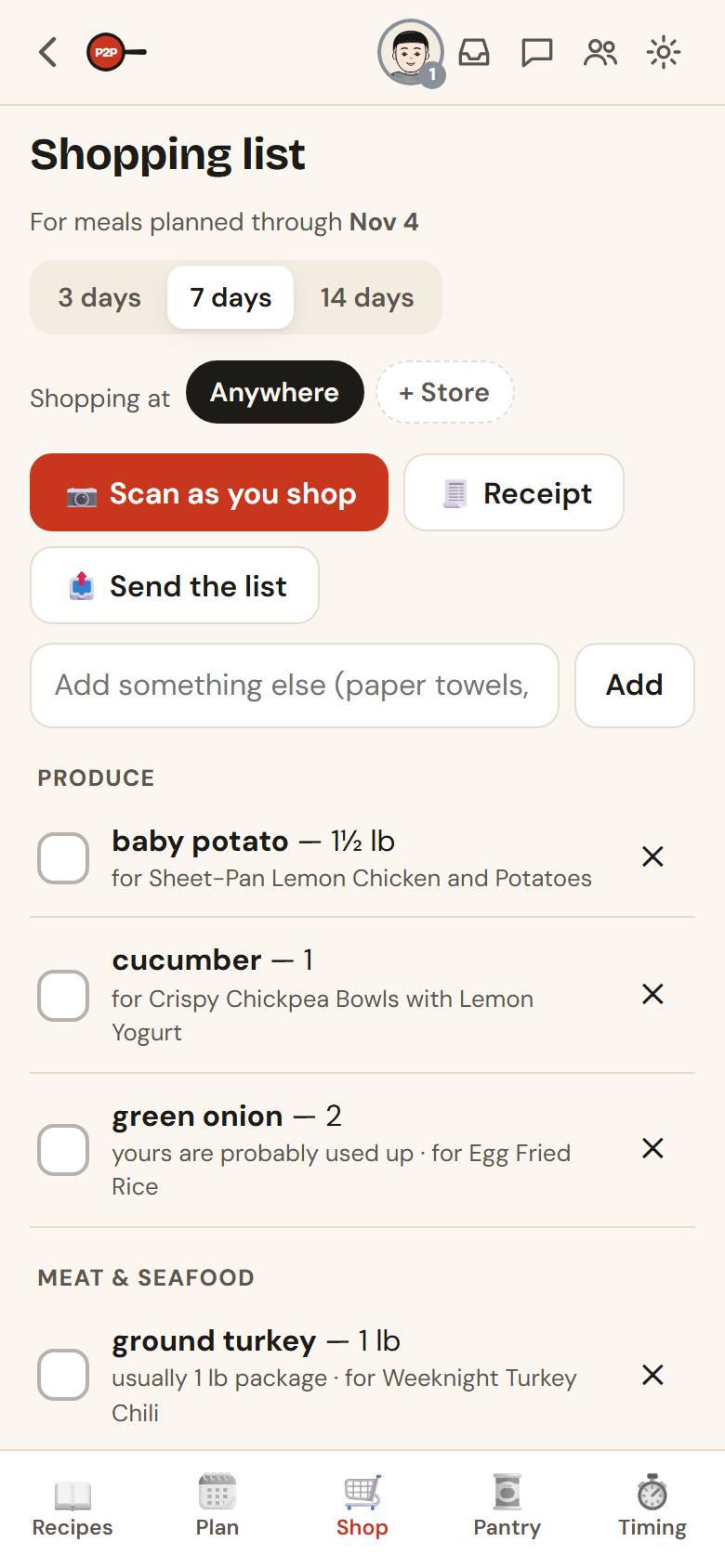
The Shop tab builds one list from your planned meals, sorted by aisle. It leaves out what's already in your pantry (see Already have) and suggests swaps from your pantry (tap Buy anyway if you want it anyway).

  • Choose 3 days, 7 days or 14 days of meals.
  • Pick the store you're at under Shopping at (tap + Store to add one).
  • Add anything else in Add something else.
The shopping list, sorted by aisle
Back to search

Tick it off

Tap โœ“ next to an item as it goes in your cart. Ticked items move to In the cart and go into your pantry automatically. Clear the cart when you're done.

Back to search

Scan as you shop, or read the receipt

  • ๐Ÿ“ท Scan as you shop: scan each barcode as it goes in the cart. It's ticked off and stocked.
  • ๐Ÿงพ Receipt: photograph your receipt after shopping. Pantry to Pan reads it, ticks off the list and stocks the pantry. Fix any names it got wrong; it remembers your fixes for next time. The receipt is saved in your food spending.
Back to search

Food spending

Open ๐Ÿ’ฒ Food spending from your shopping list or Settings to see what you spend. It's part of Plus and Pro.

  • Receipts are saved: each one you scan is kept with its store, date, items, prices and total, until you delete it. The photo itself isn't kept. If you scan the same receipt twice, you're told before it counts twice.
  • ๐Ÿฅก Add take-out: take a photo of the receipt, or just type where it was from and the total. A photo uses one of your month's receipt reads; typing doesn't.
  • See it add up: look at a month, the last 3 months or this year, by category and by place. Tax and discounts are shown on their own. Things on a receipt that aren't food, like paper towels, are kept but not counted as food.
  • A budget: set a monthly budget, and see what's left of it as the month goes. Your average from past months helps you pick a number.
  • Fix or delete: tap any entry to change it, or to delete it. A deleted one waits in Recently deleted for 30 days.

Everyone in your kitchen sees the same spending.

Back to search

Your pantry

What's in your kitchen

Watch how

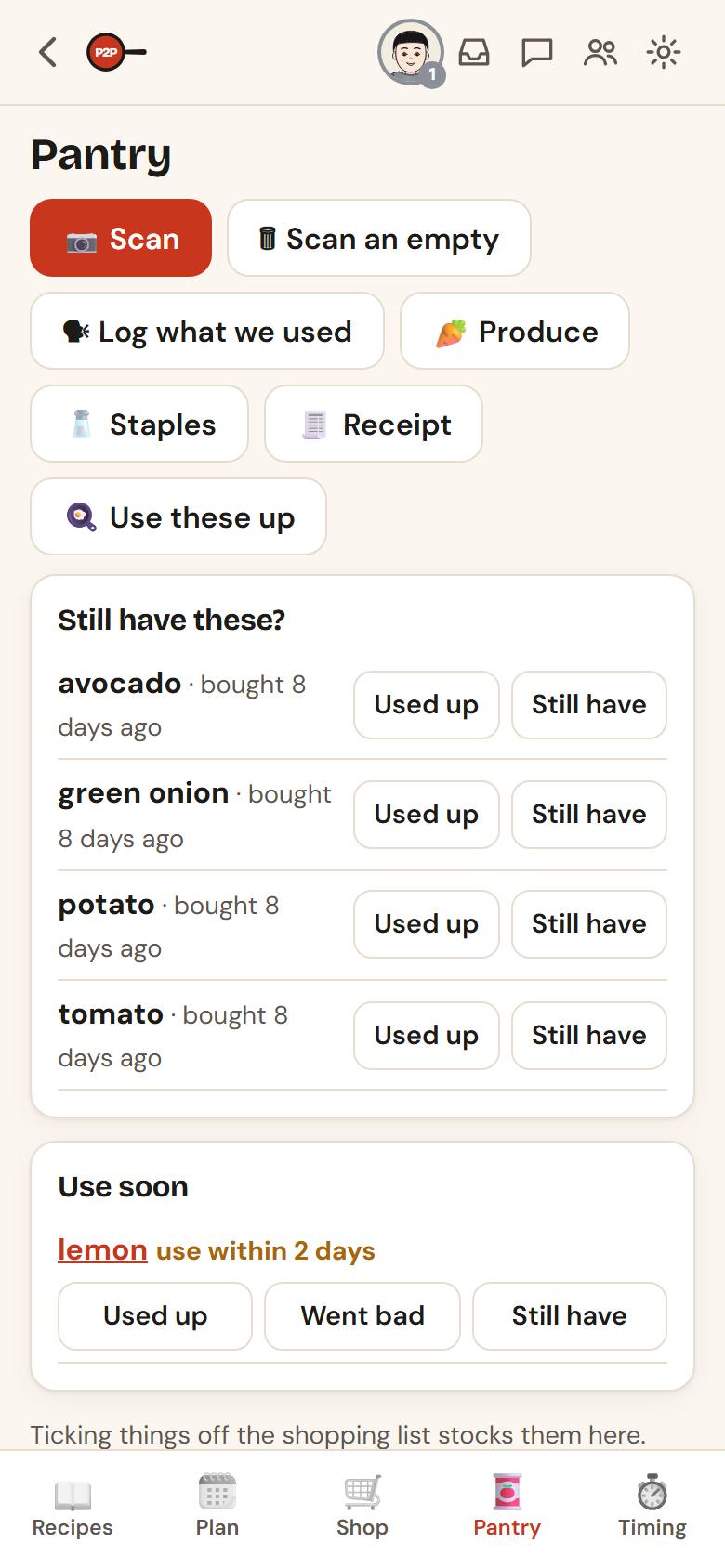
The Pantry tab lists what you have by aisle, with a count for each and how long it keeps. Use soon at the top shows what to use before it goes off. Use โˆ’ / + to fix a count and โ‹ฏ for more (opened, frozen, staple).

Your pantry mostly fills itself: ticking off the shopping list, scanning and receipts add things; Made it takes out what a recipe used.

The pantry
The pantry
Back to search

Stock your kitchen the first time

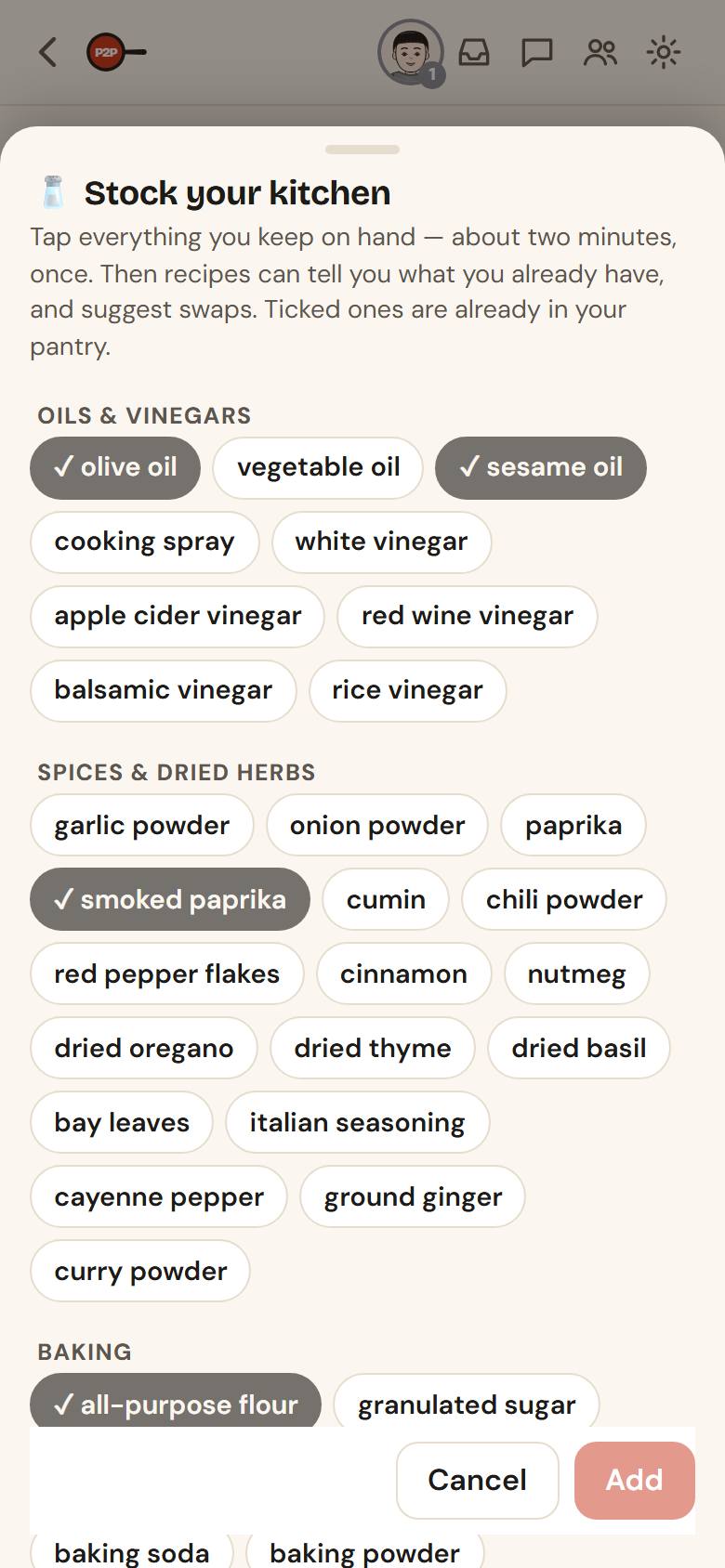
Tap ๐Ÿง‚ Staples and tick everything you keep on hand: oils, spices, baking basics, condiments. It takes about two minutes, once.

Stock your kitchen: tick your staples
Back to search

Scan barcodes

Tap ๐Ÿ“ท Scan and point the camera at a barcode:

  • ๏ผ‹ Add for something you bought.
  • Opened when you open a package (it starts a use-by countdown).
  • ๐Ÿ—‘ Finished when an empty package goes in the trash, to keep counts right.

The first time a product isn't known, tell Pantry to Pan what it is. It remembers.

Back to search

Fruit and vegetables

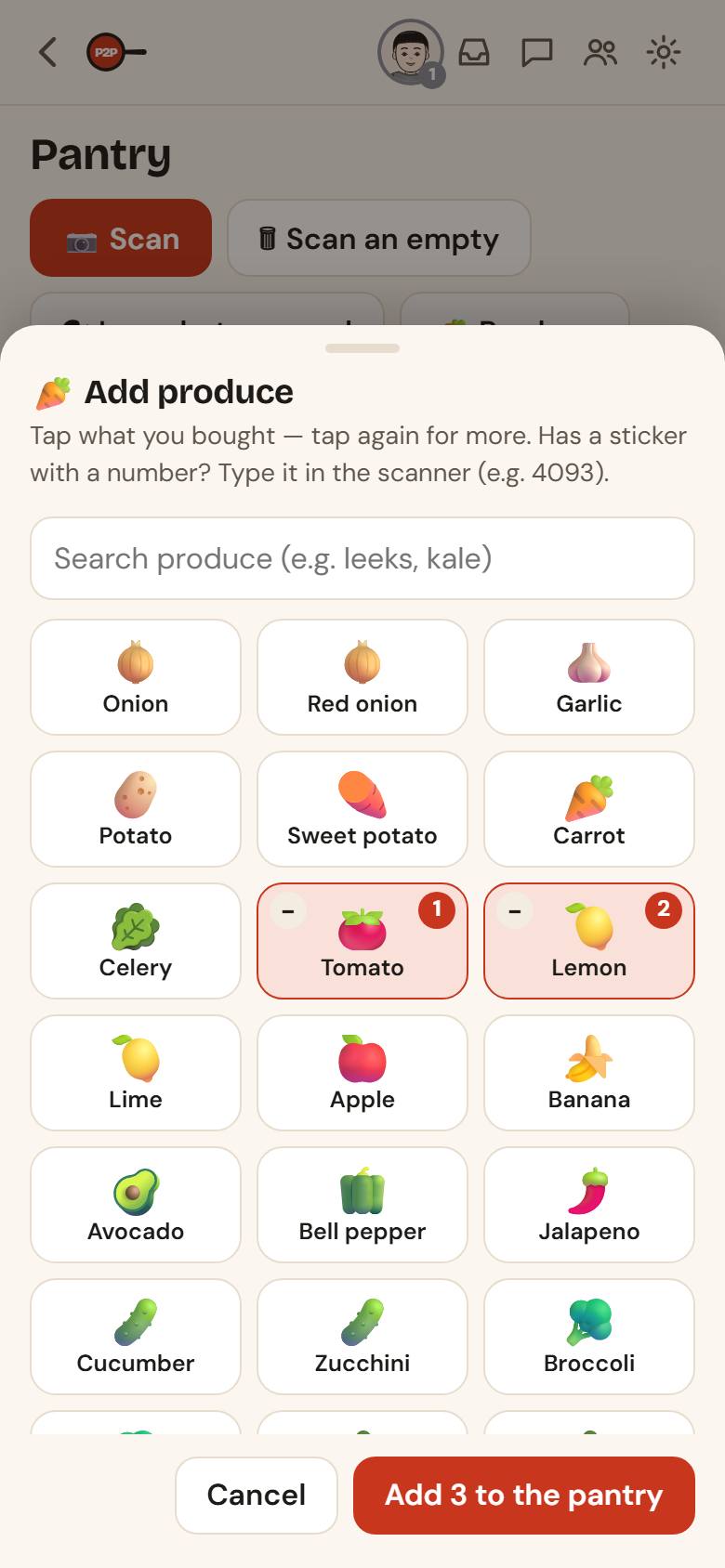
Loose produce has no barcode. Tap ๐Ÿฅ• Produce and tap what you bought (tap again for more), then Add. Has a sticker with a number? Type it in the scanner (for example 4093).

Add produce with a tap
Back to search

Log what you used

Watch how

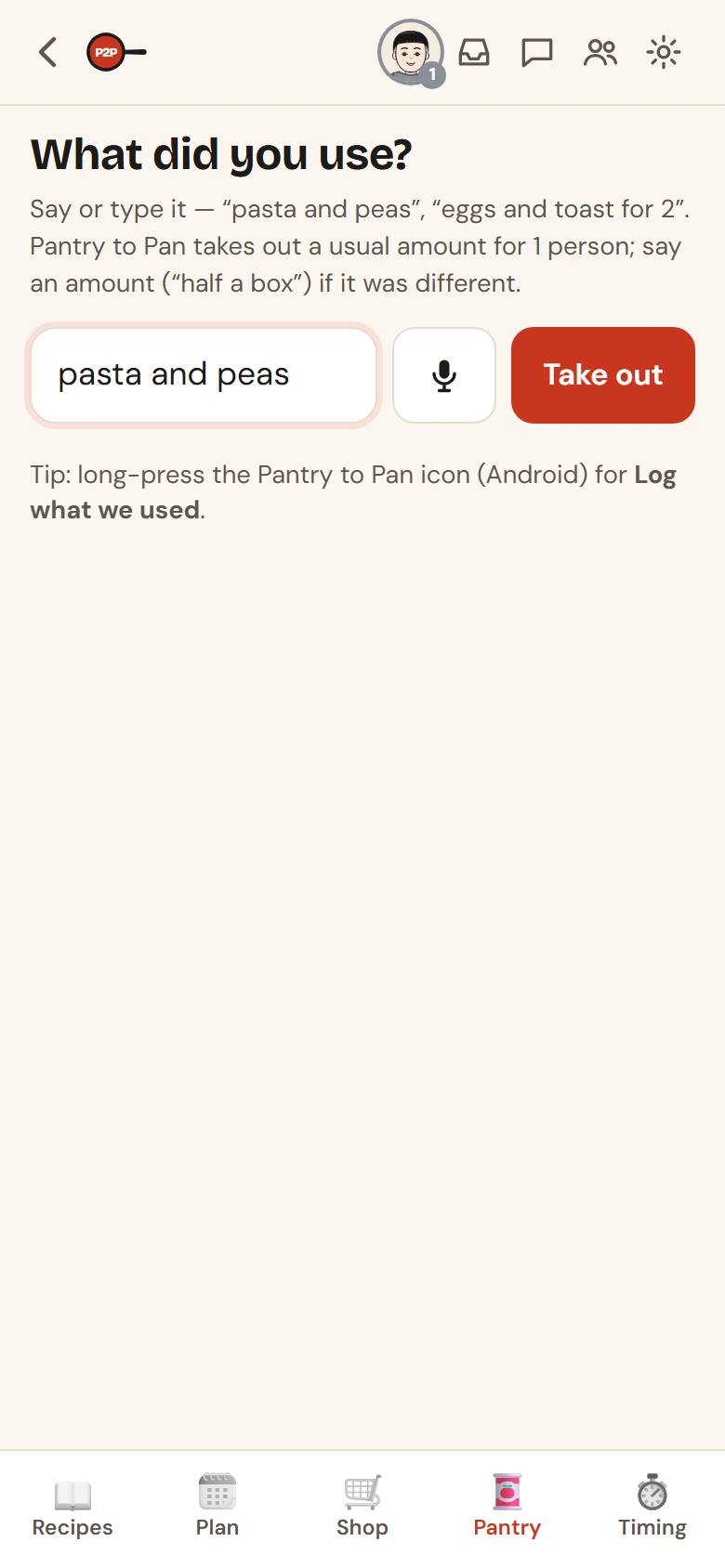
Cooked without a recipe? Tap ๐Ÿ—ฃ Log what we used and say or type it: "pasta and peas", "eggs and toast for 2". Pantry to Pan takes out a usual amount for the number of people who usually eat here (set it in Settings โ†’ People who usually eat here). Say an amount ("half a box") if it was different. Undo puts it back exactly.

On Android, long-press the Pantry to Pan icon for Log what we used, Shopping list and Scan.

Log what you used
Log what you used
Back to search

Use these up

๐Ÿณ Use these up opens What can I make tonight?: your recipes ranked by how much of them is already in your pantry, so what you have gets used.

Back to search

Turn pantry tracking off

Just want recipes and a shopping list? Settings โ†’ Pantry tracking โ†’ Off โ€” just recipes. Your pantry is kept if you turn it back on.

Back to search

Big meals and timing

Time a big meal

Watch how

For Thanksgiving, a dinner party or any meal with several dishes:

  1. Open the Timing tab and tap + New meal (or โฑ Time this meal on any day in the plan).
  2. Set when you want to eat and how many guests.
  3. Add dishes: + Dish from my recipes or + Other dish.

Pantry to Pan works backward from when you eat, so everything finishes together.

Back to search

What the timeline tells you

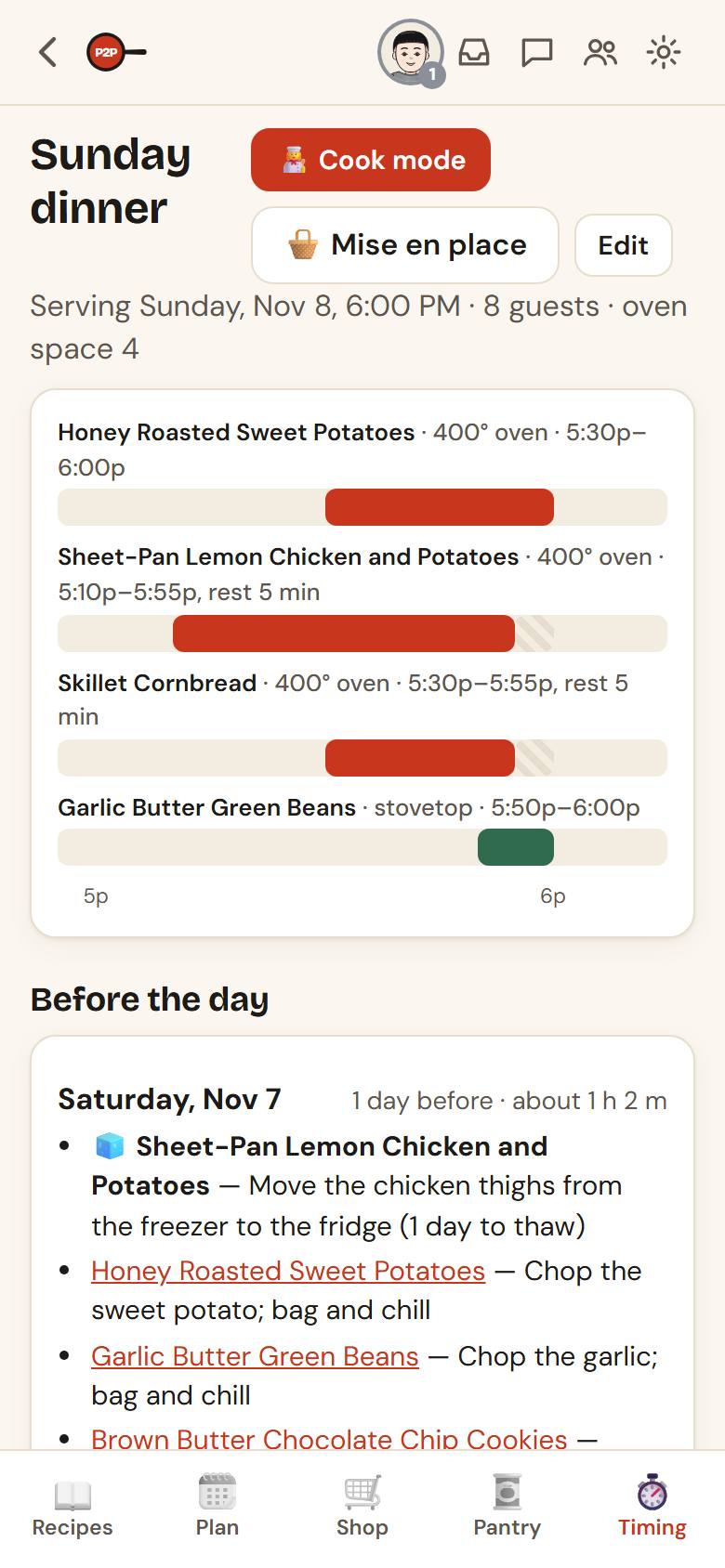
  • Before the day: what to thaw (a frozen turkey needs about a day per 4 lb in the fridge), chop or make ahead, day by day. With timer alarms on, your phone reminds you at 9 am on each of those days.
  • On the day: when to start each dish, when to preheat, what goes in and comes out of the oven, and when to serve.
  • The chart at the top shows each dish across the afternoon.
A dinner timeline that finishes every dish together
Back to search

Sharing one oven

Each dish has Cooks in (oven, stovetop, slow cookerโ€ฆ), temperature, minutes, Rest after (time out of the oven before serving; a turkey rests 30โ€“45 minutes, which frees the oven for sides), Can wait (how long it stays good covered) and Space (1 dish, full rack, big roast, whole oven). Dishes within 25ยฐF of each other share the oven and their times are adjusted.

Back to search

Friends (peer to peer)

Add friends

Open Friends, in the menu at the top right:

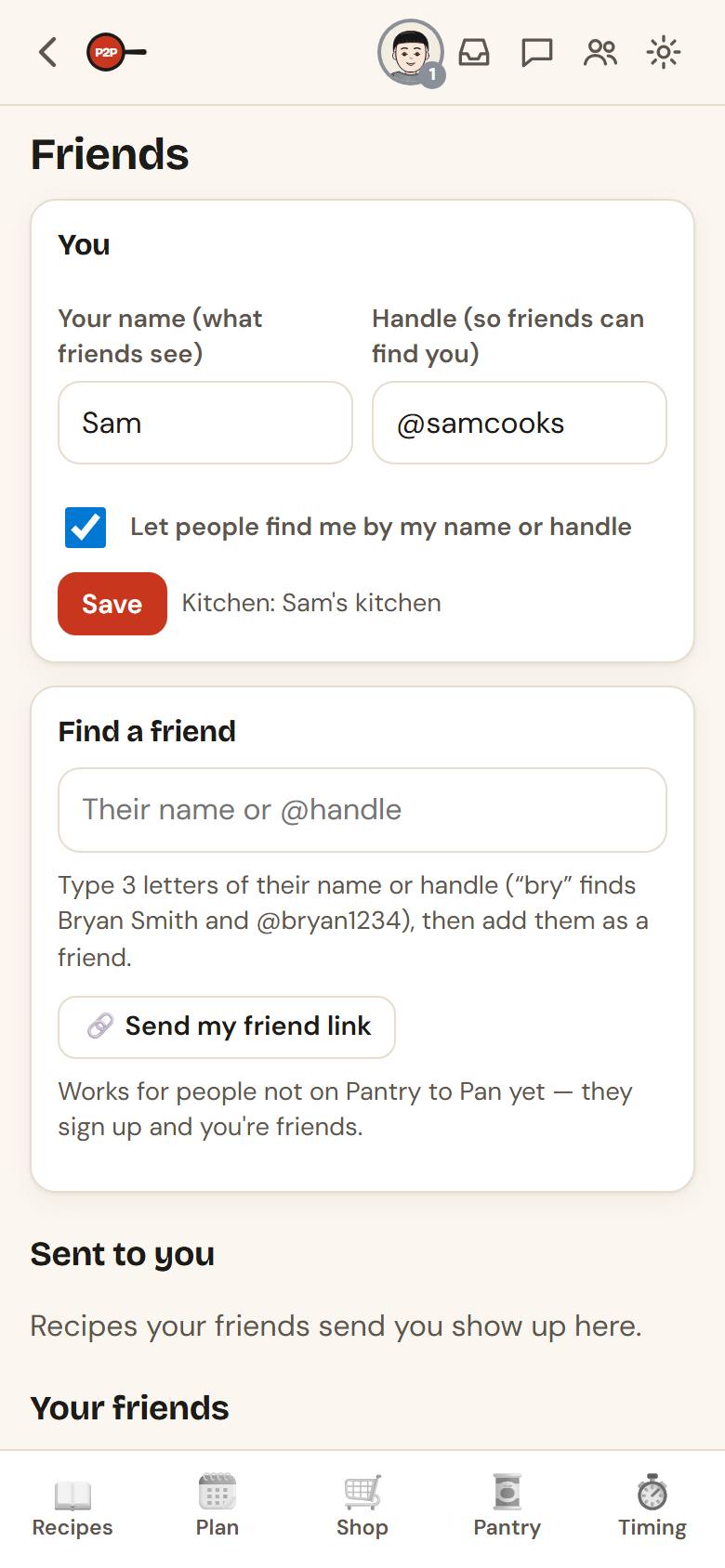
  1. Everyone picks a Handle when they start, and friends can find you by it or by Your name. Change either one here.
  2. Under Find a friend, type the first 3 letters of their name or handle: everyone who matches shows up. Tap Add friend. Or tap ๐Ÿ”— Send my friend link: the link works for people who aren't on Pantry to Pan yet, so they sign up and you're friends.
  • Rather not be found? Untick Let people find me by my name or handle. Friends can still ask with your whole handle: they type @ and the handle, then tap Ask.
Friends
Friends
Back to search

Invite friends (a free month each)

In Settings โ†’ ๐ŸŽ Invite friends, tap Share my link. A friend who joins through it gets their first month of Plus or Pro free, on top of the 14-day trial. When they start paying, you get a free month too (up to 12 a year).

Back to search

Send a recipe

Watch how

On any recipe, tap โ‹ฏ, then ๐Ÿ“ค Send to someone, and pick a friend. Recipes friends send you show up under Sent to you.

Back to search

Settings and your account

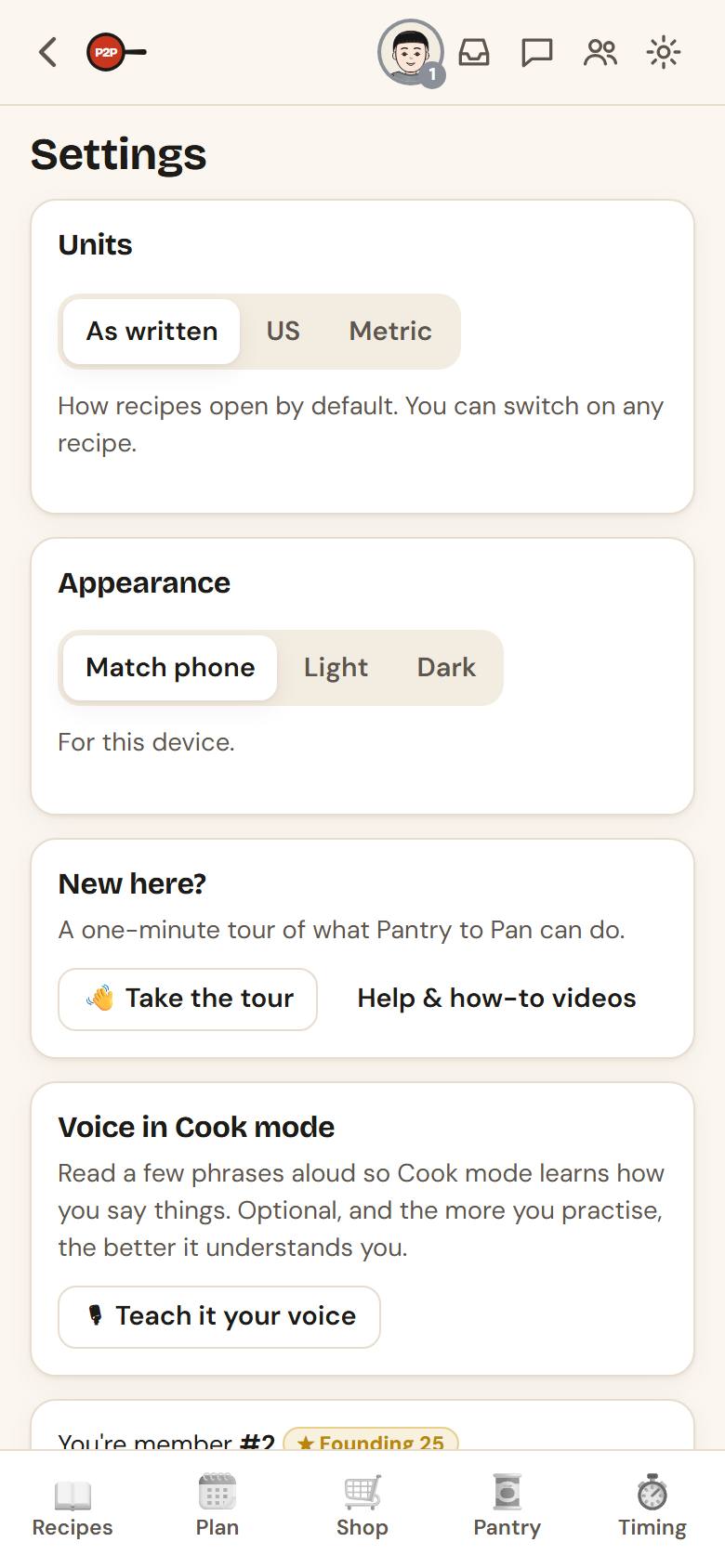
Settings worth knowing

  • Units: how recipes open by default (As written, US or Metric).
  • Appearance: Match phone, Light or Dark.
  • Diets & allergies: add the people you cook for. Recipes warn about what someone can't eat and suggest swaps; meal ideas skip them.
  • Recently deleted: recipes, pantry items, plans and lists you delete wait here for 30 days.
Settings
Settings
Back to search

Plans and billing

When you start, you choose a plan. Every plan has the recipe box and folders, Cook mode and timers, the planner, the shopping list. The plans differ mostly in recipe imports a month, and Plus and Pro each add something:

  • Free: 10 imports and 1 polished cook plan a month.
  • Plus: 40 imports, 4 polished plans and 15 receipt reads a month, and pantry tracking (barcode scans, receipts, use-it-up reminders) and Sunday prep.
  • Pro: 100 imports, 10 polished plans and 40 receipt reads a month, everything in Plus, and mise en place (prep first, then just cook, for a recipe or a whole meal), "What can I make tonight?" and Plan my week.

Plus and Pro start with a 14-day free trial. A card is needed to start, and you're charged when the trial ends unless you cancel first; you get a reminder 3 days before. Manage or cancel any time under Settings. Need a few more imports one month? A top-up pack adds 20 imports and 2 receipt reads for $2.99, used only after your monthly allowance runs out. They never expire: whatever you don't use carries over to the next month, and the month after.

Back to search

Your data and your account

  • Download my data: a zip of your kitchen's recipes (with photos), meal plan, pantry and shopping list.
  • Sign out: signs out this phone or computer only.
  • Sign out everywhere: signs out every phone and computer, and cancels any iPhone Share shortcut key.
  • Delete my account: deletes your account and data and cancels any subscription. You'll be asked to type DELETE to confirm.
Back to search

Help and feedback

Tell us what's off

Something confusing or broken, or an idea? Open the menu at the top of any screen and tap Send feedback. It goes straight to the people who make Pantry to Pan.

Back to search

More help

  • Contact: see the Support page (pantrytopan.com/support).
  • Privacy, terms and refunds: linked at the bottom of every page on pantrytopan.com.
Back to search